
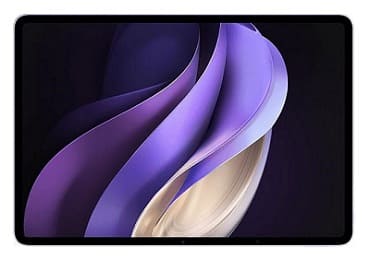
The official stock firmware for Vivo Pad3 DPD2345 is ideal for restoring your device to its original factory state. Whether you’re dealing with boot loops, software bugs, Factory Data Reset lock, or performance issues, flashing the stock ROM can help resolve these problems. This firmware is provided by the original manufacturer, ensuring security, performance, and compatibility. Please remember that stock firmware is specific to each model and must not be used on other devices.
Important Notes:
- Back up all important data from your Vivo Pad3 DPD2345 before proceeding.
- Follow the flashing instructions carefully to avoid errors.
- Flashing firmware is risky and may non-functional your device. Proceed at your own responsibility.
- Ensure the firmware is exactly for the Vivo Pad3 DPD2345 model you own.
Download Links
- DPD2345_A_14.0.12.6.W10.V000L1
- Vivo AFT Tool: Download
- EDL USB Driver: Download
- Contact Me for unbrick, Factory Data Reset, reset, region change & root
Benefits of Stock Firmware:
- Unbrick your Vivo Pad3 DPD2345.
- Remove Factory Data Reset lock easily.
- Fix common software-related issues.
- Restore screen lock, pattern, or PIN.
How to Flash Stock Firmware on Vivo Pad3 DPD2345
- Install the official USB drivers for Vivo Pad3 DPD2345 on your computer.
- Download the firmware for your Vivo Pad3 DPD2345 and extract it.
- Launch the Vivo Flash Tool (AFT).
- Log in with your Vivo after-sales credentials.
- Select the extracted firmware in the tool.
- Click on the “Flash” or “Download” button.
- Turn off your device, hold both Volume Up + Down buttons, and connect it to your PC via USB.
- Monitor the flashing progress within the tool.
- The device will reboot automatically once flashing is complete.
Note: The official Vivo tool requires authorized login. If unavailable, consider using an alternative flashing tool that supports your device.
How to Install OTA Update
- Download the update package from the links above and move it to your device’s internal storage.
- Power off the device. Then press and hold Volume Up + Power until the Fastboot menu appears. Choose “Reboot to Recovery.”
- In Recovery mode, select “Install update” and locate the downloaded file in your storage.
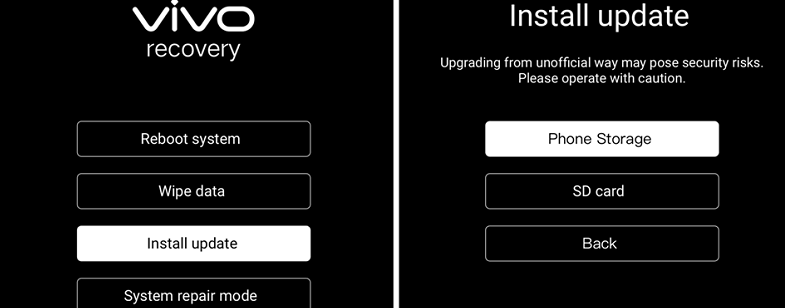
- Tap “Install” and wait for the process to complete. Once done, choose “Reboot system now.”
Related Resources:
- Download Maui Meta (All Versions for Windows)
- Fix: MI Flash Unlock – ‘Couldn’t unlock, can’t get info, connect again’