
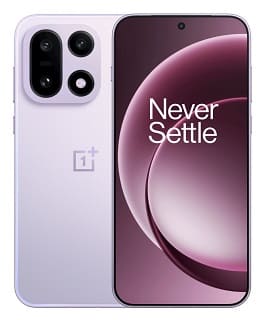
Is your OnePlus 13 or OnePlus 15 hard-bricked or stuck in EDL mode? We provide fast, secure, and professional remote authorized flashing via the official O+ Tool to bring your device back to life.
There is no worse feeling than watching your brand-new, top-tier flagship turn into an expensive paperweight. Whether you were experimenting with custom ROMs, botched an OTA update, or just suffered a random catastrophic software failure, a hard-bricked OnePlus 13 or OnePlus 15 can be a massive headache.
If your phone is stuck on a black screen, vibrating, or only showing up in Windows Device Manager as Qualcomm HS-USB QDLoader 9008, standard Fastboot commands will no longer work.
Our Remote Auth Flashing Service
We provide secure, on-demand authorized flashing services for the OnePlus 13 and OnePlus 15. You do not need to mail your device to a service center or wait weeks for a repair. We log in remotely, authenticate the O+ Tool using our official server credentials, and flash your device right at your own desk.
Why Choose Our Service?
- No Service Center in Your Area: If there are no official service centers near you, or if the closest one is too far away to travel to, our remote flashing brings the solution directly to your screen.
- No Time to Wait: Avoid the hassle of mailing in your device or waiting weeks for official service centers to return it. We fix your phone instantly on the spot.
- 100% Secure & Private: We strictly access the O+ Tool window on your PC. Your personal files, photos, and privacy remain completely untouched and safe.
- 100% Official Method: We don’t bypass or modify anything. We use the exact, official server authentication process just like the service center, ensuring your device is flashed safely and correctly.
What You Need to Prepare
To make the process as fast as possible, please have the following ready before contacting us:
-
Proof of purchase
-
A Windows PC with a stable, fast internet connection.
-
Your original OnePlus USB cable (or a high-quality data cable).
-
Qualcomm USB Drivers installed on your PC.
-
The correct Stock Firmware (OFP file) and the O+ Tool downloaded to your desktop.
-
UltraViewer, TeamViewer, or AnyDesk installed so we can securely input our auth credentials.
How the Process Works
Step 1: Contact Us Reach out to us via the contact links below to verify your device model and confirm you have the right files downloaded.
Step 2: Connect Provide your remote desktop ID and password. We will connect to your PC, open the O+ Tool, and input our verified server credentials to unlock the flashing capabilities.
Step 3: Boot into EDL Mode With your phone completely powered off, press and hold the Volume Up + Volume Down buttons simultaneously. While holding them, connect the phone to your PC via USB until it registers as 9008 in Device Manager.
Step 4: Execute the Flash Once the tool detects your device, we will execute the flash. Do not touch the phone or the cable!
Step 5: Reboot & Done The O+ Tool will rewrite the corrupted partitions. Once you see the green “Download Success” prompt, your device will automatically reboot into the standard Android setup screen.
Ready to unbrick your OnePlus?
Don’t let a bricked device ruin your week. Send us a message, and let’s get your OnePlus 13 or OnePlus 15 back up and running today.
-
Telegram: Contact us