

RMX2156 Realme Narzo 30 Flash File Firmware Free Download:
official Stock Firmware Flash File Now available for the Realme Narzo 30 & You can download it from below. with the help of this firmware you can solve all software Issues with in your Realme Narzo 30 such as hang on Logo, Factory Data Reset lock, Fastboot Mode, display Blank or White after Flash, dead recovery, dead after flash etc.
Realme Narzo 30 Run on Android 11 & it is Powered by Mediatek helio G95 Processor. it is a dual SIM (GSM and GSM) smartphone support Nano-SIM cards. connectivity options Include Wi-Fi, GPS, Bluetooth, NFC, USB OTG, FM 3G & 4G. The device come with 6GB of RAM and 128GB of Storage that can be expandable via SD card.
Note:
- it will erase all Your Personal data Including Internal storage. so we advice you to first Make a complete backup of your Phone.
- Please do carefully, we are Not responsible for any damage to Your device.
- ensure that Your device at-least 50% charge to Prevent accidental shut down.
Must Require:
Firmware Information:
Device Name: Realme Narzo 30
Type: Full ROM
ROM Size: up to 4.1GB
SoC: Mediatek helio G95
OS: Android 11
Password: romprovider.com
Gapps: Included
Root access: Not
Firmware Version: RMX2156_11_C.09_2021051019452803
Downloads Links:
Firmware File:
Flash tools:
- oppo Download tool: Download
- SP Flash tool V5.21: Download
- Miracle Box (Optional): Download
- Contact me for MSM tool Login Password, Region Change, unbrick >>
usb Driver:
- Mediatek driver: Download
- Oppo usb Driver: Download
How to Install Stock Firmware on Realme Narzo 30:
- unpack downloaded Firmware using this tool
- then disable SLA Authentication by following this Guide (if not disabled You will face a BROM error or flash tool Require a Authorized account/ID)
- Install Mediatek Vcom driver on Your computer.
- Download & Extract smartphone Flash tools on your computer
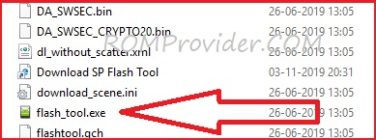
- From the flash tool folder Run Flash_tool.exe
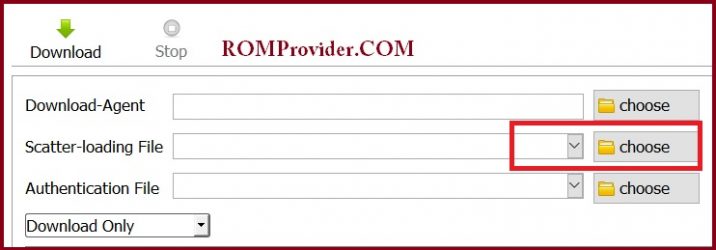
- Go to Download tab Click Scatter and Load Scatter File from ROM Folder
- select download only. Click Download & Connect Your switched off Phone.
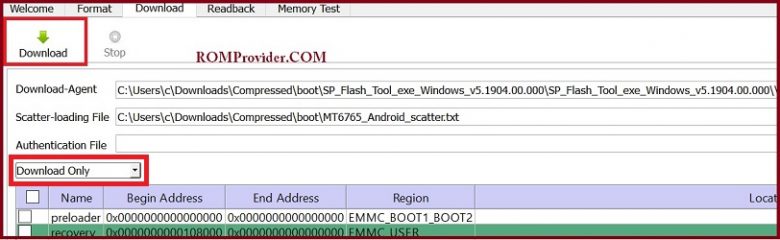
- You can see flashing Process on screen. after complete unplug & switch it on
How to Flash/unbrick Realme Narzo 30 Via Oppo Download tool:
- Extract ROM File & Download tool in same Folder
- Now Install correct driver on PC
- connect Phone to PC with USB
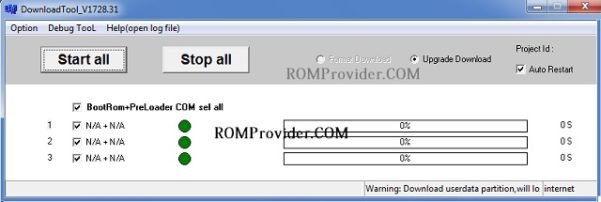
- Run Download tool. it will automatically load the Firmware if not then select ofp firmware and then and click start. wait until flashing complete, done. unplug Phone and bootup.
Fixes & Solutions:
if there was a flashing error untick below Listed Partition in SP flash tools
- opporeserve2
- cdt_engineering
- md1mg
Related: