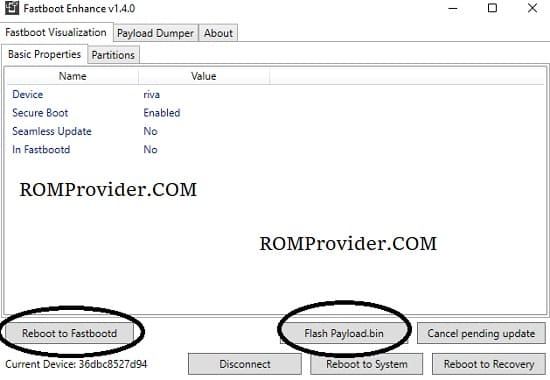
Fastboot Enhance is a highly versatile, open-source toolbox and graphic user interface (GUI) manager developed by libxzr. Designed specifically for Windows, this user-friendly utility simplifies complex dynamic partition flashing operations and serves as an incredibly fast, native Payload.bin dumper.
Instead of typing repetitive code strings in a command terminal or installing bulky Python environments just to extract ROM partitions, Fastboot Enhance gives you a powerful point-and-click dashboard to manage fastbootd transitions, manipulate dynamic slots, and flash partitions effortlessly.
📥 Direct Download Section (Latest Setup)
Get the official, clean compilation files from our secure repository below.
| Software Version Name | Type Profile | Direct Download Link |
| Fastboot Enhance v1.4.0 (Latest) | Stable Release Pack | 📂 Download Fastboot Enhance v1.4.0 |
-
Development Architect: libxzr (Official GitHub Release)
-
Execution Style: 100% Portable (No installation required)
-
System Prerequisite: Microsoft .NET Framework 4.5 or newer installed on your PC.
-
Target Audience: Strictly for devices with an unlocked bootloader.
What Can Fastboot Enhance Do?
The application is split into two primary engine modules: a Fastboot connection manager and a standalone local payload partition extractor.
Advanced Fastboot & Fastbootd Manipulation
-
Variable Extraction: Read and output real-time system details (
fastboot vars) from your connected phone. -
Seamless Mode Swapping: Instantly switch your device between standard Bootloader, Fastbootd, Recovery, and the Android System UI.
-
Seamless A/B Slot Switching: Manually toggle your active hardware boot targets between Slot A and Slot B in one click.
-
Partition Modification: Easily erase partitions, delete logical volumes, create new custom logical sectors, or resize them on the fly.
-
Dynamic Partition Metadata: Read and analyze complex raw dynamic partition maps and metadata profiles.
Premium Payload.bin Dumper Options
-
Direct Fastbootd Flashing: Flash full, unzipped
payload.binfirmware packages straight onto your phone while it is in fastbootd mode. -
Full Payload Extraction: Unpack complete OTA or factory stock ROM zip archives locally onto your PC’s storage.
-
Targeted Image Pulls: Don’t want to extract a 4GB file just for root? Browse the internal map to pull out only specific images (like
boot.img,init_boot.img, orvbmeta.img). -
Variable Verification: Read built-in payload variables and check security checksum signatures automatically.
How to Use Fastboot Enhance
Because this software functions as a portable application, it will not populate or clutter your Windows registry files. Follow these simple operational steps:
Step 1: Prep Your Files and PC
-
Download the Fastboot Enhance v1.4.0 ZIP archive from our download block above.
-
Extract the compressed folder onto an easily accessible folder on your computer using WinRAR or 7-Zip.
-
Turn on USB Debugging inside your smartphone’s Developer Options menu, and ensure your device’s bootloader is fully unlocked.
Step 2: Establish Fastboot Interface Connection
-
Power off your phone completely. Reboot it into Fastboot Mode by holding down Volume Down + Power (or use command terminal execution:
adb reboot bootloader). -
Connect your device to your PC with a high-quality USB wire.
-
Open the extracted tool directory, right-click on
FastbootEnhance.exe, and click Run as Administrator.

Step 3: Flash or Unpack Locally
-
To Flash a Payload Package: Once the tool identifies your serial number, ensure your phone is shifted into Fastbootd Mode (indicated by a blue/purple screen layout on modern Androids). Click Flash Payload, browse your storage to select the file, and watch the visual progress bar run.
-
To Unpack a Single Image: Switch over to the Payload Dumper tab menu. Hit Browse to point the tool toward your extracted stock ROM’s
payload.bin. Head to the Partitions panel grid, highlight the individual block file you need (e.g., boot), and click Extract Image to save it locally.