

The official Stock ROM for your Alldocube iPlay 60 Pad Pro is the perfect solution to restore your device to its original performance. Whether you’re facing boot loops, system bugs, Factory Data Reset locks, or sluggish performance, flashing the stock ROM can resolve these issues and bring your device back to life.
This stock ROM is the manufacturer-approved firmware, guaranteeing optimal stability, security, and compatibility. Important: Stock ROMs are device-specific and cannot be used across different models. Always verify your device model before proceeding.
Important Notes Before Flashing
- Create a full data backup of your Alldocube iPlay 60 Pad Pro to prevent data loss.
- Follow the flashing instructions carefully to avoid bricking your device.
- Using the wrong firmware may cause malfunctions or permanent boot loops.
- Confirm that your device model is Alldocube iPlay 60 Pad Pro before proceeding.
Download Links
- iPlay60_Pad_Pro_v3.1.31_20250409 >> Model: T1201,T1202
- SP Flash Tool V6: Download
- MediaTek USB Driver: Download
- Contact Me for unbrick, Factory Data Reset, reset, region change & root
Benefits of Installing Stock ROM on Alldocube iPlay 60 Pad Pro
- Unbrick your Alldocube iPlay 60 Pad Pro and restore full functionality.
- Restore Factory Data Reset locks securely.
- Resolve system glitches and performance issues.
- Remove pattern or password locks from your Alldocube iPlay 60 Pad Pro.
How to Flash Stock ROM on Alldocube iPlay 60 Pad Pro
Follow these step-by-step instructions to install the stock ROM on your Alldocube iPlay 60 Pad Pro:
- Install the Alldocube iPlay 60 Pad Pro USB drivers on your computer.
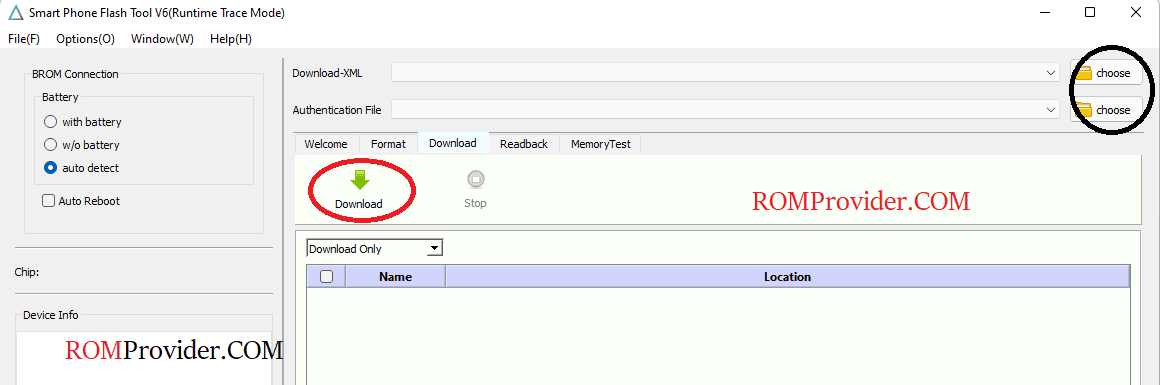
- Launch SP Flash Tool V6.
- Locate and select the scatter config file document from the firmware folder.
- Select the DA and AUTH files from the firmware folder.
- In the SP Flash Tool, choose “Download Only” from the dropdown menu.
- Click the “Download” button to initiate the process.
- Connect your Alldocube iPlay 60 Pad Pro to the computer in EDL mode.
- Wait for the process to complete. Your device will restart automatically upon success.
How to Install Recovery ROM
To install a recovery ROM, use the following command in your terminal or command prompt:
adb sideload 'filename'