
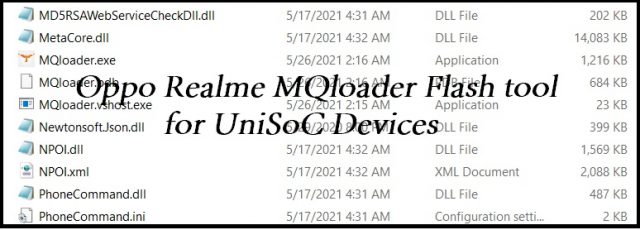
The MQloader Upgrade Tool is a powerful utility that allows you to flash or install stock firmware on any smartphone running on a Spreadtrum (SPD) or Unisoc SoC (Chipset). It is highly popular for servicing modern devices, including Oppo and Realme smartphones.
Below, you will find the direct download link for the latest official version, followed by a complete step-by-step flashing guide.
📥 Direct Download Section
Get the latest setup file for your PC. Make sure you have a stable internet connection to download the utility.
-
File Name: MQloader_Upgrade_Tool_v2.5.0.0.zip
-
File Version: v2.5.0.0 (Latest Build)
-
Supported OS: Windows 7, 8, 10, 11 (32-bit & 64-bit)
Note: MQloader is a rebranded version of upgrade tool and its outdated, that’s why we link upgrade download tool R27.23.2401 which support newer devices
Key Features of MQloader Tool
-
Oppo & Realme Support: Easily log in using an authorized Oppo/Realme After-Sales account to service locked devices.
-
Factory Data Reset File Creation: Quickly create custom Factory Reset Protection (Factory Data Reset) files to restore Google account locks.
-
Universal SPD/Unisoc Flashing: Works seamlessly across all devices running on Spreadtrum or Unisoc processors.
-
Firmware Unpacker: Extract and unpack generic
.pacfirmware files with a single click.
How to Use MQloader Upgrade Tool to Flash Firmware
Follow these exact steps to flash stock ROMs using the MQloader utility. Ensure your computer has the proper Spreadtrum/Unisoc USB drivers installed before starting.
Step 1: Launch and Authorize
-
Download and extract the ZIP file on your computer using WinRAR or 7-Zip.
-
Open the extracted folder and run MQloader.exe as an administrator.
-
If you are flashing an Oppo or Realme device, log in using your official After-Sales account credentials when prompted.
Step 2: Load Your Firmware Package
-
Once the main window opens, look for the firmware selection area.
-
Click on the Select Firmware Package option.
-
Navigate to your computer’s storage and select the specific pac firmware file for your phone.
Step 3: Connect and Start Flashing
-
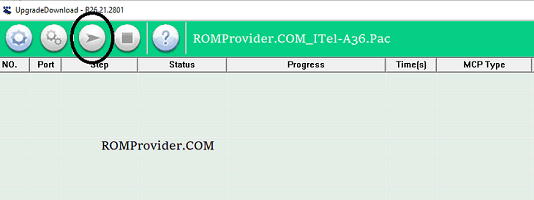
Click the Download / Start button on the tool interface.
-
Power off your smartphone completely.
-
Press and hold the volume buttons (usually Volume Down or both Volume Up + Down, depending on your model) and connect the phone to your PC via a USB cable.
-
The tool will automatically detect your device, and the flashing progress bar will begin moving.
Step 4: Finish and Reboot
-
Do Not Disconnect: Wait patiently while the tool installs the firmware. Unplugging the cable mid-process can permanently damage your phone.
-
Success: Once the flashing process shows a success message, safely disconnect your device and power it on. Your phone will now boot up with a fresh factory firmware!