
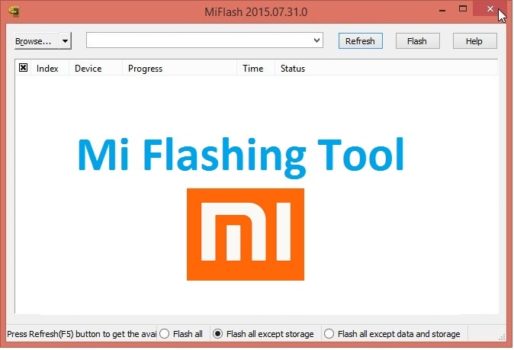
Xiaomi smartphones are incredibly popular worldwide because they offer a fantastic combination of powerful hardware and feature-rich system at an affordable price. To support their community, Xiaomi provides official utility programs for maintenance, and the Xiaomi Mi Flash Tool is the definitive choice for system restorations.
By utilizing the Mi Flash Tool, you can flash official stock firmware packages (Fastboot ROMs) directly onto your device. This official utility is highly essential for restoring soft-bricked hardware, fixing bootloops, installing fresh factory updates, or reverting completely back to stock system.
📥 Direct Download Section (All Stable Versions)
Get the official, clean compilation setup packages below. The newer versions run portably without clogging your Windows system parameters.
| Software Version Name | Release Profile | Direct Download Link |
| Mi Flash Tool v20220507 (Latest) | Stable Universal Build | 📂 Download Mi Flash v20220507 |
| Mi Flash Tool v20220218 | Previous Stable Pack | 📂 Download Mi Flash v20220218 |
| Mi Flash Tool v20210813 | Previous Engine Build | 📂 Download Mi Flash v20210813 |
| Mi Flash Tool v20210226 | Secure Database Build | 📂 Download Mi Flash v20210226 |
| Mi Flash Tool v20200314 | Legacy Core Setup | 📂 Download Mi Flash v20200314 |
| Mi Flash Tool v20171212 | Classic Stable Pack | 📂 Download Mi Flash v20171212 |
| Mi Flash Tool v20160401 | Legacy Installer Build | 📂 Download Mi Flash v20160401 |
| Mi Flash Tool v20151028 | Old Legacy Build | 📂 Download Mi Flash v20151028 |
Technical Specifications:
-
Developer Source: Official Xiaomi Inc.
-
Supported OS: Windows 7, 8, 10, 11 (32-bit & 64-bit)
-
Supported Devices: Full compatibility across all generations, extending to recent flagships.
-
Critical Rule: Flashing core system partitions carries a risk of bricking your phone. Always back up your personal data completely before running the system.
Key Features of Xiaomi Mi Flash Tool
-
Integrated Driver Installer: The setup package comes pre-packaged with essential driver infrastructures, including Google ADB/Fastboot Tools, Microsoft MTP/RNDIS networking maps, and Qualcomm USB Serial communication protocols. No manual driver sorting is necessary.
-
Three Flexible Flashing Modes: Gives you distinct control over how data is overwritten at the bottom pane:
-
Clean All (flash_all.bat): Wipes all data and flashes firmware. Leaves the bootloader unlocked.
-
Save User Data (flash_all_except_data.bat): Refreshes the core system files but keeps your local internal storage untouched.
-
Clean All and Lock (flash_all_lock.bat): Completely factory resets the phone and automatically re-locks the bootloader for factory-level security.
-
-
Emergency Unbricking: Communicates directly via standard Fastboot rules or low-level Qualcomm EDL 9008 Mode to recover devices that won’t turn on normally.
🛠️ What is Mi Flash Pro? Mi Flash Pro is an advanced, multi-functional variation of the flashing tool distributed by Xiaomi. It combines the core Mi Flash engine with a localized MediaTek (SP Flash Tool) manager and an integrated stock OTA firmware link downloader workspace.
⚙️ How to Install Xiaomi Mi Flash Tool
-
Download your preferred version from our high-speed table above.
-
Extract the compressed ZIP archive into a dedicated folder on your computer using WinRAR or 7-Zip.
-
Double-click the installation executable configuration file (
MiFlashSetup.exe) and run the setup wizard. -
Accept the terms and authorize the secondary pop-ups asking to install Google, Microsoft, and Qualcomm driver packages.
How to Use Mi Flash Tool to Flash Fastboot ROMs
⚠️ Prerequisite: Your Xiaomi, Redmi, or POCO device must have a fully unlocked bootloader to flash firmware via Fastboot mode. Modern security rules also dictate that deep flashing via EDL mode requires an authorized Mi Service Account.
Step 1: Prepare and Extract Your Firmware
-
Download the official Fastboot Firmware (Stock firmware) matching your exact phone model version. (Ensure you download a Fastboot firmware ending in
.tgz, not a Recovery firmware ending in.zip). -
Extract the
.tgzarchive onto your computer using WinRAR. For the smoothest experience, place the extracted folder directly into your local C:\ Drive root path.
Step 2: Open the Flashing Dashboard
-
Launch the Xiaomi Mi Flash Tool via your desktop application shortcut.
-
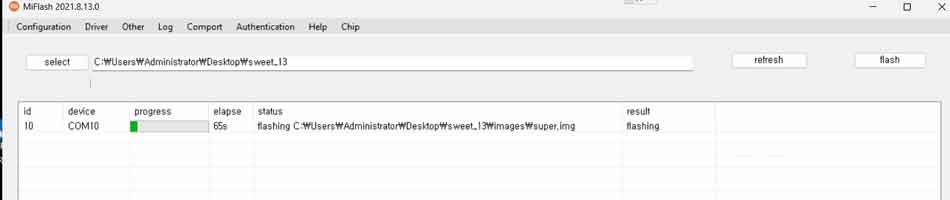
Click the Select button at the top left corner, navigate to your storage, and highlight your extracted firmware directory folder (choose the main directory containing the images subfolder).
Step 3: Connect the Phone in Fastboot Mode
-
Turn off your smartphone completely.
-
Press and hold down the Volume Down + Power buttons together until the official Fastboot logo graphic displays on your screen.
-
Link your phone to the PC using a stable USB data cable.
-
Back on the system interface, click the Refresh button. Your phone’s unique terminal device serial string ID will instantly display inside the device grid row.
Step 4: Choose Mode and Execute
-
Look at the bottom menu strip options and check your preferred flashing method: Clean All, Save User Data, or Clean All and Lock (Recommended for structural restoration).
-
Click the large Flash execution button at the top right to start the data transmission script.
-
Leave the data cord completely undisturbed while the engine copies system images. Once the progress banner bar status changes to green and displays “Success”, your phone will automatically reboot into a fresh, factory-clean operating system!
