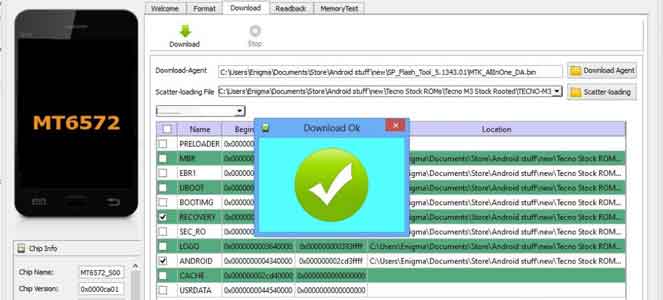
The Smart Phone Flash Tool (SP Flash Tool) is a specialized utility designed to flash official stock firmware, custom recoveries, and unbrick dead or bootlooping Android devices built on MediaTek (MTK) chipsets. By establishing a secure USB connection directly with your device’s BootROM, it allows you to completely rewrite or upgrade your smartphone’s internal storage memory.
📥 Direct Download Section (Windows & Linux)
Choose your required package from our safe, verified download repository below.
⚠️ Important Firmware Compatibility Rule:
For XML-based modern firmware: Download SP Flash Tool v6.xx series.
For Scatter-based (txt) firmware: Download SP Flash Tool v5.xx series.
Windows Downloads
| Software Version | Format Support | Download Links |
| SP Flash Tool v6.2404 (Latest) | XML Only | 📂 Download v6.2404 |
| SP Flash Tool v6.2316 | XML Only | 📂 Download v6.2316 |
| SP Flash Tool v5.2316 (Recommended) | Scatter File | 📂 Download v5.2316 |
| SP Flash Tool v5.2216 | Scatter File | 📂 Download v5.2216 |
| SP Flash Tool v5.2208 | Scatter File | 📂 Download v5.2208 |
| SP Flash Tool v5.2148 | Scatter File | 📂 Download v5.2148 |
| SP Flash Tool v6.2216 | XML Only | 📂 Download v6.2216 |
| SP Flash Tool v6.2136 | XML Only | 📂 Download v6.2136 |
| SP Flash Tool v5.2112 | Scatter File | 📂 Download v5.2112 |
| SP Flash Tool v5.2104 | Scatter File | 📂 Download v5.2104 |
| SP Flash Tool v5.2052 | Scatter File | 📂 Download v5.2052 |
| SP Flash Tool v5.2036 | Scatter File | 📂 Download v5.2036 |
| SP Flash Tool v5.2032 | Scatter File | 📂 Download v5.2032 |
| SP Flash Tool v5.1924 | Scatter File | 📂 Download v5.1924 |
| SP Flash Tool v5.1628 | Scatter File | 📂 Download v5.1628 |
| SP Flash Tool v5.1524 | Scatter File | 📂 Download v5.1524 |
| SP Flash Tool v3.1224 | Older Chips | 📂 Download v3.1224 |
Required MTK Setup Drivers
To enable your computer to recognize your powered-down phone, install these essential drivers before starting:
-
👉 Download MTK VCOM USB Driver (Manual Installer)
Linux Downloads
| OS Package Name | System Architecture | Download Links |
| SP Flash Tool Linux Latest | 64-bit Systems | 📂 Download 64-Bit Linux |
| SP Flash Tool Linux | 32-bit Systems | 📂 Download 32-Bit Linux |
Key Features of Smart Phone Flash Tool
-
Flash MTK Stock ROM: Easily reinstall or upgrade stock firmware. It allows you to fix system crashes, fix bootloops, or downgrade your OS in just a few clicks.
-
Custom Recovery Flashing: Install custom recoveries like TWRP or OrangeFox. Load your scatter profile, select your
recovery.imgfile, and hit write. -
Hardware Memory Test: Perform hardware stress tests to verify external RAM integrity and analyze the condition of your internal NAND flash storage.
-
Format Memory & Hard Reset: Clean your device’s memory partitions down to raw factory specifications with a simple point-and-click layout.
-
Readback Full ROM (Dump Stock): Extract and backup your device’s working factory firmware directly to your PC before installing any custom changes.
How to Use SP Flash Tool to Flash Firmware
Take Note: Flashing custom modifications or stock ROMs carries a distinct risk of bricking your handset. Always back up your personal files completely before proceeding.
Step 1: Initialize Setup and Drivers
-
Install the downloaded MTK VCOM Drivers on your system.
-
Unzip your downloaded SP Flash Tool package along with your targeted device’s official firmware using 7-Zip or WinRAR.
-
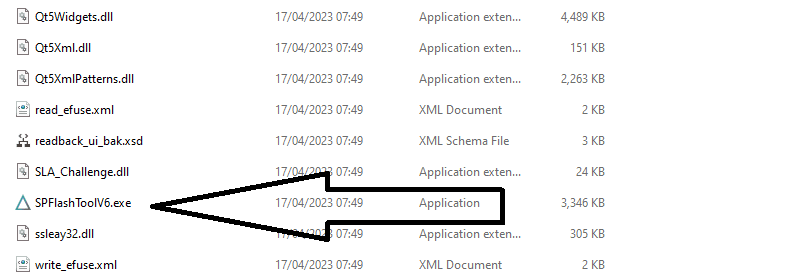
Open the extracted folder, right-click on
flash_tool.exe, and run it with Administrator privileges.
Step 2: Load Your Configuration Map File
-
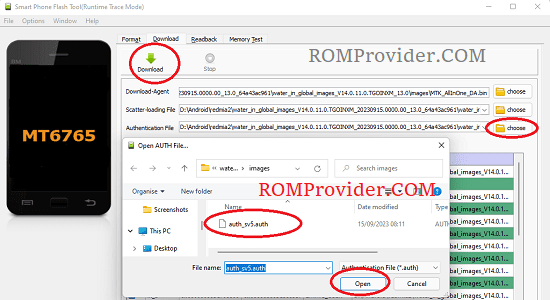
Locate the Scatter-loading File section on the main application interface and click Choose.
-
Navigate directly to your extracted stock firmware directory.
-
Look for the specialized index text file (commonly titled
Android_scatter.txtor the configuration XML profile if you are running version 6) and open it. - Repeat the process and select download agent and auth file (modern devices are protected , a valid download agent and auth file is require)
Step 3: Establish Firmware Flashing Modes
-
Use the drop-down selector menu to select “Download Only” (Recommended for typical upgrades or system restorations).
-
Click the large green Download arrow button positioned at the top left of the control pane.
Step 4: Device Hookup and Execution
-
Ensure your MediaTek mobile device is completely turned off.
-
Without pressing any buttons, link your phone to the PC using a stable USB cord. (If your device fails to link up automatically, try holding the Volume Down or Volume Up button while connecting the cable).
-
The bottom progress banner will instantly light up in yellow as data packets transfer over to your phone’s memory core.
Step 5: Completion Verification
-
Be Patient: Leave the equipment entirely undisturbed while it runs. Breaking the link mid-process will hard-brick the device.
-
Successful Finish: A mini window featuring a bright Green Circle/Checkmark will pop up on your monitor indicating the process is complete. Unplug your device and switch it back on!