
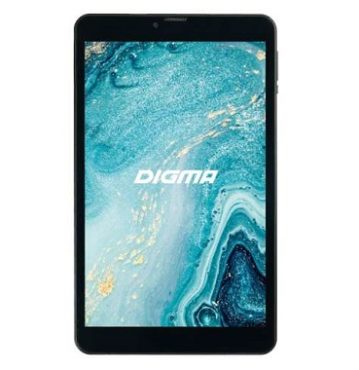
Download Stock Firmware/Flash File For Digma CITI 8592 3G:
Official Stock Firmware Flash File have now been available for the Digma CITI 8592 3G & Now You can Download it From Below. Official Stock Firmware for Digma CITI 8592 3G Will help You to Restore Your bricked device. the Firmware come in Scatter format Which Can be Flash either with SP Flash tool or Miracle box.
Digma CITI 8592 3G Run on android 9.0 & it is Powered by Mediatek MT8321 Processor. it is a Dual SIM (GSM) Smartphone Support Nano-SIM Card’s, Connectivity options include Wi-Fi, GPS, Bluetooth, USB OTG, FM, 3G.
The device come with 2GB of RAM and 32GB of Storage can be expandable via SD card. in camera department it come with 2MP Rear camera With 0.3MP front shooter.
Must Require:
Why We Need Stock Firmware?
- to downgrade a Phone
- to upgrade a Phone
- Fix some serious issue in phone
- Remove Factory Data Reset, Pattern and Pin lock
- fix bootloop and software issue on Phone
- completely Re-Installation of board software
Pre-Requirement’s
- backup NVRAM using this guide
- first make a complete backup of your Personal data (if Possible)
- charge the device at least 50% to prevent accidental shut down during the process
Firmware Information:
Device Name: Digma CITI 8592 3G
Type: Full ROM
Size: up to 1.1GB
SoC: Mediatek MT8321
Os: Android 9.0
Password: Null
Root access: Not
Gapps: Included
Firmware Version: Citi_8592_cs8209mg_rev2_factory_20191018
Downloads:
Firmware Links:
- Firmware: Download
Flash Tools:
- SP flash tools 5.2: Here
- Miracle Free: Download
Driver:
- Mediatek Preloader V-COM Driver: Download
How to Install Stock Firmware on Digma CITI 8592 3G:
- Extract downloaded stock firmware..
- Install Mediatek VCOM driver on Your computer.
- Download & extract smartphone Flash tools on your computer
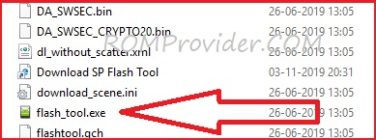
- from the flash tool folder Run flash_tool.exe
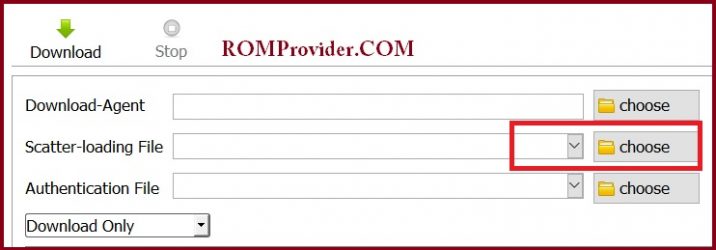
- Go to Download tab Click Scatter and load scatter file from ROM folder
- select Download only. Click Download & connect Your switched off Phone to PC by Pressing volume up & down key.
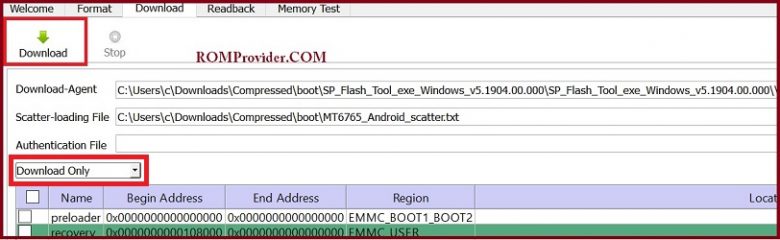
- You can see Flashing Process on screen. after complete unplug & switch it ON
Read also:
- How to unlock Bootloader
- How to Repair Device Network ID (Baseband) Number
- Google Camera 6.1 Working HDR Plus Portrait Mod Slow Motion
have any question Let Me Know via comment.