
The Samsung Firmware Downloader (developed by zacharee and now evolved into the popular open-source project Bifrost) is a highly efficient, cross-platform utility built to fetch official stock firmware packages directly from Samsung’s updating servers.
Unlike restrictive, slow web archives that throttle extraction speeds or charge premium subscription fees, this tool communicates natively with official servers. It acts as a lightweight wrapper that parses your phone’s hardware parameters, checks for active software releases, and grabs high-speed binary (.zip) firmware dumps directly to your computer.
📥 Direct Download Section (All Stable Versions)
Get the clean, portable utility files directly from our secure repository below. These builds run portably on Windows and do not require a heavy desktop installation wrapper.
| Software Version Name | System Profile Type | Direct Download Link |
| Samsung Firmware Downloader v0.3.6 (Latest) | Stable Multiplatform Setup | 📂 Download Downloader v0.3.6 Now |
Technical Specifications:
-
Developer Source: zacharee (Official Open-Source MIT Project)
-
File Structure: Portable Compressed ZIP Archive
-
Supported OS: Windows 7, 8, 10, 11 (32-bit & 64-bit) / Linux / Android
-
Companion Flashing Utility: To flash the downloaded firmware packages onto your phone, you must use Odin Flash Tool.
Important Rules Before Downloading Firmware
Before attempting to grab or write core firmware files onto your Samsung Galaxy smartphone, review these necessary prerequisites:
-
Data Wiping Risk: Flashing firmware can completely reset your phone’s operating system environment. Always create a comprehensive backup of your local personal data before executing any flashing tasks.
-
Incorrect Flashing Risk: Attempting to force an incompatible region firmware or incorrect hardware model package layout carries a risk of hard-bricking your phone’s motherboard. Proceed with care.
Key Features of Samsung Firmware Downloader
-
Native Full-Speed Bandwidth: Pulls raw data packages directly from official Samsung content delivery networks (CDN) without restricting or throttling your local download speeds.
-
Automated Logic Scanner: Features a dedicated Auto verification toggle that automatically parses Samsung servers to target the newest available firmware version for your region.
-
Built-In Decryption Engine: Samsung server files are encrypted by default into heavily locked
.enc2or.enc4formats. This software automatically decrypts the completed file wrapper into a clean, flashable.zipfile on the fly. -
Cross-Platform Portability: Developed using Kotlin Multiplatform architecture, providing a shared graphical user interface (GUI) layout across multiple desktop frameworks.
How to Download Samsung Firmware
To use the tool successfully, you will need to find your device’s unique Model Number and CSC (Region) Code first.
Step 1: Locate Your Device Identity Codes
-
On your phone, navigate to Settings ➔ About Phone ➔ Software Information.
-
Note down your precise Model Number string (Example:
SM-J400ForSM-G998B). -
Scroll down to Service provider software version. The three-letter alphabetical code sequence displayed there corresponds to your regional carrier profile code (Example:
EGYfor Egypt,INSfor India, orXAAfor the USA).
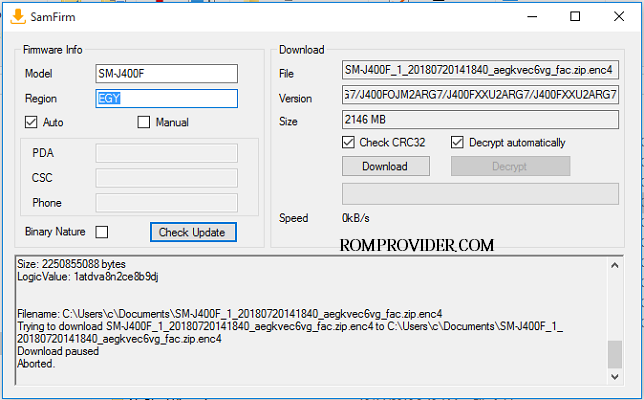
Step 2: Configure the Search Interface
-
Download the Samsung Firmware Downloader v0.3.6 ZIP folder from our high-speed table above.
-
Extract the portable archive contents onto your desktop folder path using WinRAR or 7-Zip.
-
Open the output folder path, locate
Downloader.exe, right-click it, and choose Run as Administrator. -
Type your exact device model string index directly into the Model input text pane field (e.g.,
SM-J400F). -
Type your targeted geographic identifier code into the Region / CSC field box (e.g.,
EGY).
Step 3: Run the Server Verification Query
-
Tick the checkbox marked Auto to allow the application’s script to manage updates automatically.
-
Click on the Check Update action trigger button.
-
The software console will communicate directly with the server matrix, outputting details like the latest OS version, security patch dates, file sizes, and binary encryption types in the status fields.
Step 4: Execute the Download Process
-
Click on the large Download execution button located next to the firmware details panel block.
-
Choose a destination folder on your computer’s hard drive where you want to save the heavy package file.
-
Keep your network connection undisturbed while the visual progress bar runs. The tool will automatically download the binary data blocks, run a structural integrity verification check, and decrypt the final package into a clean, uncorrupted stock firmware archive directly inside your chosen directory!