

The FRP (Factory Reset Protection) lock is a security feature on your Oukitel C6 5G designed to prevent unauthorized access after a factory reset. If you’re locked out of your phone due to forgotten Google account credentials, this guide provides a reliable, step-by-step solution to bypass the FRP lock without needing to visit a service center.
Bypassing the FRP lock can help you regain access to your device quickly, but it requires careful execution to avoid issues. This method uses the SP Flash Tool and specific drivers to perform the bypass, ensuring compatibility with your Oukitel C6 5G. Follow the instructions below to unlock your device safely.
Prerequisites
- Ensure your computer is running Windows 7 or later.
- Use the original USB cable for a stable connection.
- Charge your Oukitel C6 5G to at least 50% to prevent unexpected shutdowns.
- Proceed at your own risk, as flashing may brick your device if done incorrectly.
- Create a backup of all important data before starting.
Steps to Bypass FRP Lock on Oukitel C6 5G
- Download and install the MediaTek USB Driver on your computer to ensure proper device recognition.
- Download and extract the SP Flash Tool XML Edition to a folder on your computer.
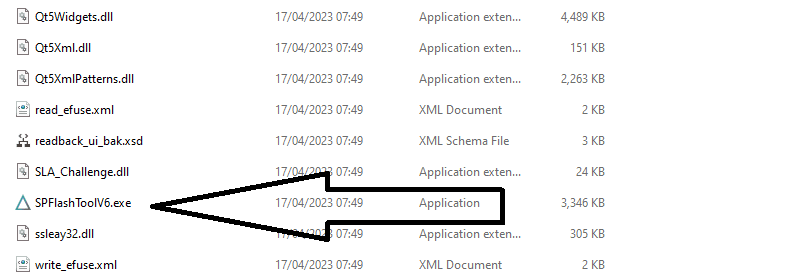
- Launch SPFlashToolV6.exe from the extracted folder.

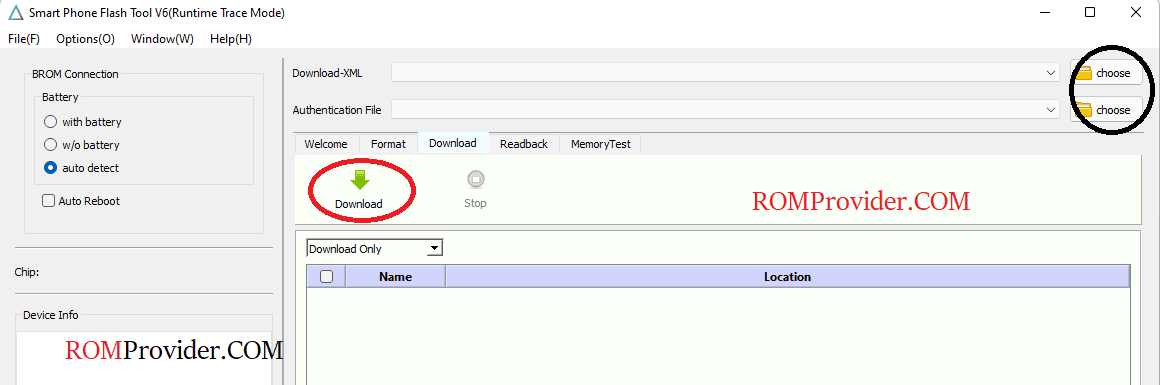
- In the "Download" tab, click "Choose", then browse and select the flash.xml file from the FRP bypass file located in the download_agent folder. Alternatively, you can use the scatter file from your device’s firmware and select only the FRP partition.
- From the dropdown menu, select "Download Only".
- Click the "Download" button to initiate the flashing process.

- Power off your Oukitel C6 5G completely.
- Hold the Volume Up and Volume Down buttons simultaneously, then connect your Oukitel C6 5G to the computer using the USB cable to enter EDL mode.
- Monitor the flashing process in the SP Flash Tool interface for progress and error messages.
- Once the process is complete, the device will restart automatically, and the FRP lock should be bypassed.
Troubleshooting Tips
- If the device is not detected, recheck the MediaTek USB Driver installation and try a different USB port.
- Ensure the correct flash.xml or scatter file is selected to avoid errors.
- If the flashing process fails, double-check the Oukitel C6 5G is in EDL mode and the USB cable is secure.
- Contact support at romprovider.com/support if issues persist.
Additional Notes
After bypassing the FRP lock, set up your Oukitel C6 5G with a new Google account or the correct credentials to avoid future lockouts. Regularly back up your data to prevent loss during similar processes. For further assistance, visit our support guides or check for updated firmware and tools specific to your Oukitel C6 5G.