


How to Unlock Network [Carrier] on any android Phone

Network unlocking on android Phone: Many android Phone Come with locked network due to partnership of Smartphone Maker and carrier Service Provider. So we can use only Provider’s SIM card on that phone. If you also facing this issue then You are on a Correct place in the Page You Will learn How you can … Read more

How to Enable usb Debugging on Android

USB debugging is a feature available on Android smartphones that allows developers to communicate with the device over a USB connection and access its software and hardware components for testing and debugging purposes. When USB debugging is enabled, the device is able to communicate with a computer and send information to and receive information from … Read more

How to Create a nandroid backup on Android

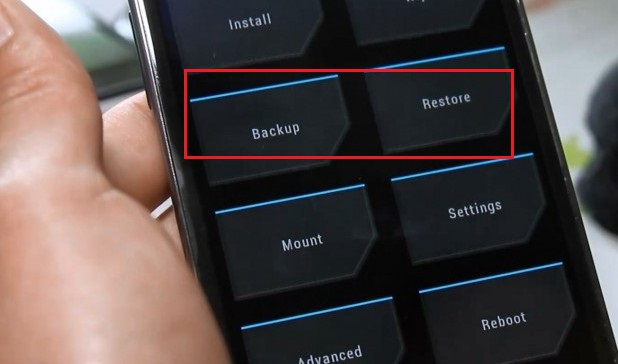
Nandroid backup Android: What is nandroid backup: nandroid backup is a Complete backup of Your android Phone including all your Data Like MSg’s Contact and apps Data with the official factory image or System. and the Job is done by using a Custom Recovery Like twrp and CWM. Nandroid Backup ensures everything on your device will remain safe … Read more

How to Completely backup Restore Android app data Msg call log etc.

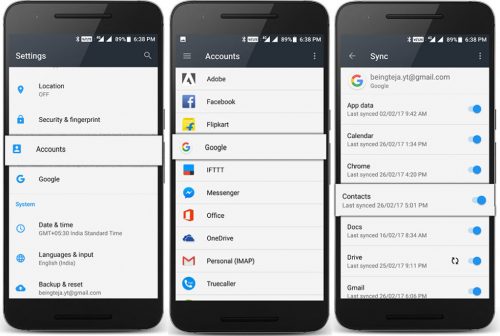
Backup android: backup Play Most important Role during the Reseting the Device. it will help us to Restore all our data’s when Something Goes Wrong. backup also help us during the upgrade the device to a custom ROM or the worst would be to lose the phone then backup comes as a savior in case something … Read more

[Pic’s art Guide] How to Make a Swirled Sky

Swirled Sky on Pic’s art:

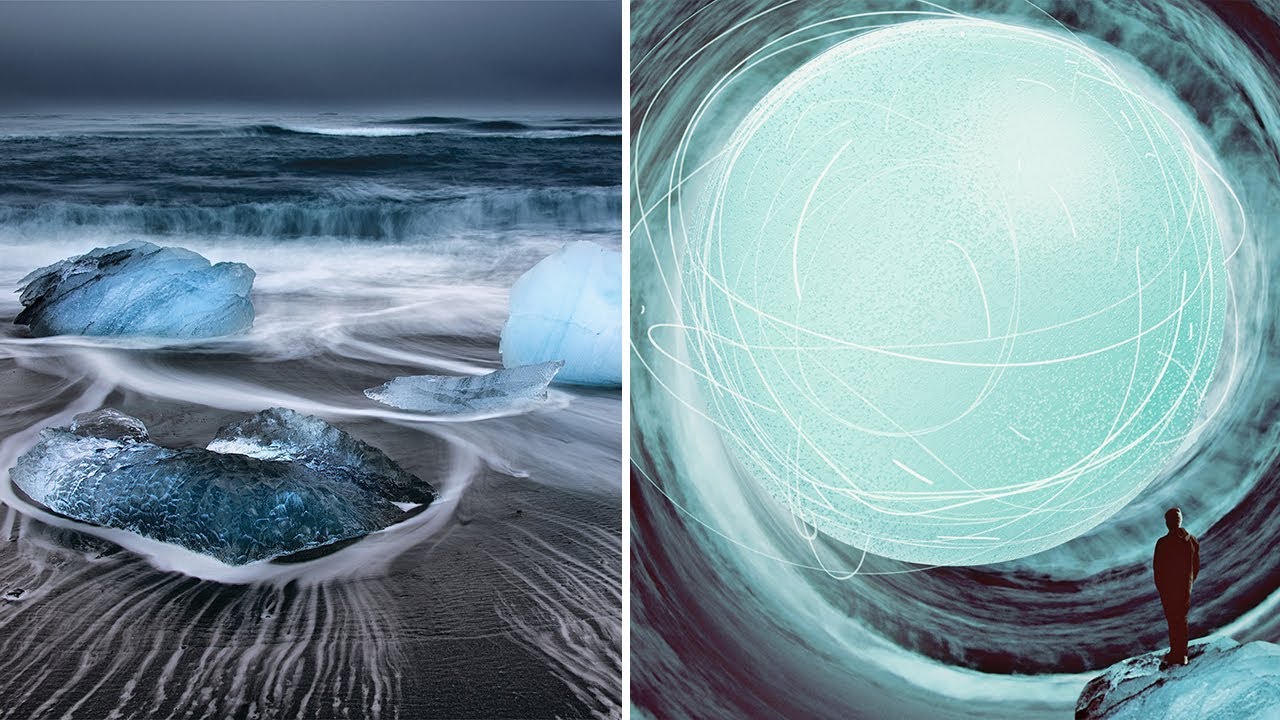
is you like Swirled World if yes then you are on a Correct place, In the page We are Going to Share a Step by Step guide to make a Swirled Sky using the Pics art. This Guide is Really easy and Everyone can do it sing below Steps.

Steps:

  1. Download PicsArt photo editor and collage maker for iOS, Android, or Windows.
  2. Open your picture in the photo editor and tap on Effect > Distort > Tiny Planet. Tap again on the Tiny Planet icon to open the settings panel and play with the sliders until you get your desired effect. Tap on “Apply.”
  3. Tap on the Add Photo icon and open a photo with an iceberg on it.
  4. Tap on the Cutout icon and draw an outline around the iceberg. Tap on the arrow in the top right corner. Refine your selection if necessary, then tap on “Save.” Place the sticker on your photo.
  5. Tap on the plus sign at the top of the screen and select “Add Photo.” Repeat step 4 to add a person to your photo. When you’re done, tap on “Apply.”
  6. Tap on the Store icon and search for the 3D Shapes pack. Choose the sphere sticker and place it on your photo. Tap on “Apply.”
  7. Tap on the Store icon again and go to the Big Bang pack. Choose a sticker and place it over the sphere. Tap on “Apply.”
  8. Tap on the arrow in the top right corner to finish. Save your edit and share it on PicsArt with the hashtag #SwirledSky.
Related articles:

1. Understanding Layer on Kinemaster Pro

2. How to Download all item for free on Pics art

3. [Guide] How to Remove Water Mark of Kinemaster Pro

4. [Guide] How to Remove/Change Video Background on Kinemaster Pro