When a phone doesn’t boot normally anymore — stuck on the logo, stuck in a loop, or not booting at all — people commonly call it “bricked.” But with Samsung phones, this state is usually soft-bricked, which means it’s still possible to recover your device using Samsung’s official tools (unlike hard bricks where hardware is fried).
Samsung devices have a special mode called Download Mode. It’s a recovery interface that lets tools like Odin talk to your phone and rewrite its software. If your phone boots into Download Mode, it’s almost always fixable.
Requirements:
- A Windows PC — Odin runs on Windows.
- USB Cable — Samsung’s original cable works best.
- Samsung USB Drivers — Download
- Odin Flash Tool — Download
- Official Samsung Firmware Files — use following tool to download latest version
Flashing Steps:
Step1: Boot Into Download Mod >>
- Power the phone off completely.
- Press and hold Volume Down + Volume Up at the same time.
- Keep holding until you see a warning screen.
- Press Volume Up to accept and enter Download Mode.
Step 2 — Get the Right Firmware
Download Correct Firmware, There are multiple parts to the firmware package:
- AP — main Android system
- BL — bootloader
- CP — modem/radio
- CSC / HOME_CSC — region/service software
Be careful which CSC file you pick:
- HOME_CSC → keeps your data (dirty flash)
- CSC → wipes data (clean install)
Step 3: Firmware Flash
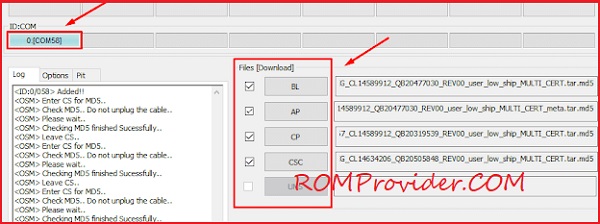
- Open Odin on your PC.
- Load each firmware component into its slot:
- BL → Bootloader file
- AP → Main firmware
- CP → Modem
- CSC → HOME_CSC (important)

- In Odin’s Options, make sure Re-Partition is enabled only if you loaded the PIT file.
- Click Start.