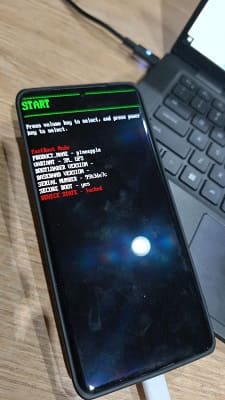
If you’ve been using Android devices for a while, you already know how much freedom an unlocked bootloader gives you. Custom ROMs, root access, modding — the whole fun side of Android. But if you’ve recently picked up the Oppo Find X7 Ultra and tried the usual fastboot flashing unlock command, you probably discovered the same thing everyone else did: it simply doesn’t work.
Oppo has locked down this phone in a way that goes far beyond the usual “fastboot lock.” The bootloader is disabled at a deeper level, and you can’t open it through regular fastboot commands, no matter how many times you try.
After spending a lot of time digging into how this device handles its security chain, here’s the reality of how unlocking actually works on it.
Why the Standard Method Fails
On most Android phones, unlocking the bootloader is basically a permission switch. Oppo, however, ties it into a pair of partitions that decide:
- Whether the phone can be unlocked at all
- Whether the unlock command is even supported
The two important components are:
• OCDT partition
This little-known partition controls whether the bootloader can be toggled into an unlocked state. On the Find X7 Ultra, Oppo ships it in a “locked” configuration that blocks unlocking entirely.
• ABL (Android Bootloader)
This is the part responsible for the actual unlocking routines.
The problem?
The stock ABL on the Find X7 Ultra doesn’t include the code for unlocking. It literally cannot perform the function.
That’s why the phone just ignores unlock commands.
How Advanced Users Manage to Unlock It
People who really know their way around Qualcomm devices have found a workable approach, but it’s not the beginner-friendly type.
To put it simply:
- You need to flash an engineering ABL, because the stock one won’t support unlock.
- You need an OCDT configuration that enables you to enter the bootloader mod
Once those two pieces are in place, the phone behaves more like an internal testing unit, and unlocking becomes possible again. This isn’t some magic trick — it’s the same setup engineers use during development.
But here’s the important part…
This Process Is Not Simple, and Definitely Not Risk-Free
If you’re used to flashing ROMs on Xiaomi, Pixel, or older OnePlus phones, forget everything you know. Oppo’s security chain is far more strict.
A single wrong flash can cause:
- Qualcomm crash loops
- A boot stack that won’t recover
- A complete hard brick requiring hardware work
- Region mismatches that kill the boot chain
Most mistakes won’t be fixable with normal tools. Some require EDL flashing, and some can permanently disable the phone depending on what gets overwritten. This is why I don’t recommend experimenting unless you really know what you’re doing.
Should You Attempt It Yourself?
You might consider doing it if you:
- Have experience with raw partition flashing
- Know how to work with EDL mode
- Understand Oppo’s firmware structure
- Have the correct ENG ABL & matching OCDT files
You probably shouldn’t attempt it if:
- You’re expecting a simple fastboot command
- You’ve never recovered a Qualcomm device before
- You use the phone as your primary device
- You’re not comfortable with the possibility of a hard brick
This is one of those situations where the phrase “do it at your own risk” truly applies.
If You Need Help
If the process sounds overwhelming or you don’t want to risk damaging a brand-new phone, you can reach out for professional help on a fee. Contact us >> require proof of purchase..