
OnePlus 11 (CPH2449) Firmware Flash File, Tools & Solutions
Download official firmware, stock ROMs, and recovery files – all versions and regions available.
Firmware & Solutions for CPH2449
- Version: Link Resolver & Downloader
- Updated: February 22, 2026 11:49:27
- Type: Solution
Firmware & Solutions for CPH2449
- Version: CPH2449GDPR_11_15.0.0.700EX01_
- Updated: January 17, 2026 12:06:27
- Region: EU
- Type: Stock
Firmware & Solutions for CPH2449
- Version: OrangeFox-R11.3-Unofficial-salami-V8.img
- Updated: October 4, 2025 03:40:15
- Type: Stock
Firmware & Solutions for CPH2449
- Version: twrp 3.7.1
- Updated: October 4, 2025 03:33:43
- Type: TWRP
Firmware & Solutions for CPH2449
- Version: CPH2419export_11_A.14_2022120100280241
- Updated: September 25, 2025 04:42:02
- Type: Stock
Firmware & Solutions for CPH2449
- Version: CPH2449GDPR_11_A.27_2023101209280110
- Updated: September 25, 2025 04:19:16
- Type: Stock
Firmware & Solutions for CPH2449
- Version: Google Camera V9.3.116 Beta
- Updated: September 22, 2025 05:06:40
- Type: APK Solution
Firmware & Solutions for CPH2449
- Version: Rooting Guide
- Updated: September 22, 2025 05:00:13
- Type: Guide
Firmware & Solutions for CPH2449
- Version: CPH2449GDPR_11_14.0.0.830EX01_2024071814070000
- Updated: September 22, 2025 04:04:05
- Type: Stock
Installation Guide for OnePlus 11 Stock Firmware
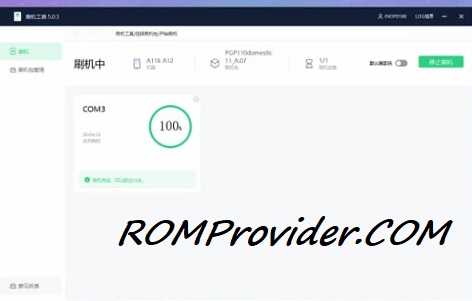
Most of new devices are protected and can be flash only with official edl auth..- Download and extract the firmware ZIP file to your computer.
- Install Oplus USB drivers on your PC.
- Download and extract the Oplus Download Tool.
- Launch the tool and log in with a service account (if required).
- Click Import and select the extracted firmware folder.
- Click the START button in the tool.
- Power off the phone, then press and hold both Volume Up + Down buttons.
- While holding the buttons, connect your device to the PC via USB.
- Wait for the tool to detect and flash your phone automatically.
Bootloader Unlocked Devices:
- Flash using fastboot enhance tool
- Flash using any tool that support your device
⚠️ Disclaimer & Safety Guidelines
- Proceed at your own risk – Wrong flashing may brick your device.
- Always make a full backup before process.
- Make sure your device is charged.
Note: All resources on this page are sourced from public domains and community efforts. For removal requests or issues, contact us directly.