

Unlocking the bootloader on your Realme GT8 Pro opens the door to advanced customization. Whether you want to root your phone, install a custom recovery, or install a custom ROM, unlocking the bootloader is the first and most important step.
This guide walks you through each step in a clear and simple way. Just be sure to follow the instructions carefully to avoid issues.
Important: Unlocking the bootloader will wipe all the data on your Realme GT8 Pro. This includes apps, settings, contacts, and internal storage. Please back up everything before proceeding. Also, note that doing this might void your warranty.
Step 1: Enable Developer Options and USB Debugging
- Open the Settings app on your Realme GT8 Pro.
- Scroll down and tap About phone.
- Find the Build number and tap it 7 times quickly until it says “You are now a developer!”
- Go back to Settings and open Developer options.
- Enable both OEM unlocking and USB debugging.
These two options are necessary for communicating with your phone using ADB and Fastboot.
Step 2: Request Bootloader Unlock Approval
Realme and some other brands require approval before allowing you to unlock the bootloader. Here’s how to do it:
- If your phone is running a global ROM, you may first need to install the China ROM.
- Sign in with your Heytap account (used for Realme services).
- Download the appropriate DeepTest APK for your device:
- Install and open DeepTest.
- Tap Apply, check the confirmation box, and tap the green button again to submit your unlock request.
- The app will show a timer indicating how long you need to wait for approval (usually 1 hour or more).
- If you want to skip the wait, uninstall the newer DeepTest version and install the older one linked above.
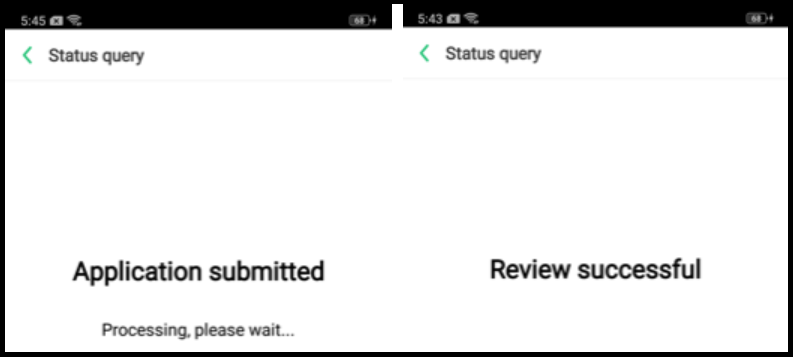
- Open the old version and tap Query Approval.
- If approved, the app will show a success message above the Start DeepTest button. Tap it, and your phone will restart into bootloader mode.
Step 3: Set Up ADB and Fastboot
- Download the latest ADB & Fastboot platform tools.
- Extract the ZIP file into a folder on your computer.
- Open that folder, then right-click while holding Shift and choose Open command window here or Open PowerShell window here.
- Connect your phone with a USB cable.
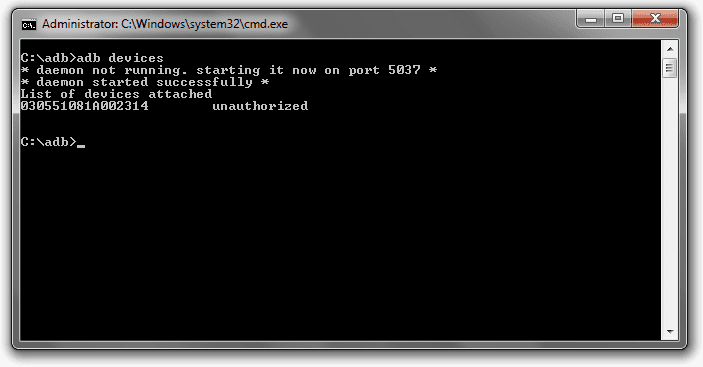
- In the terminal, type the command below to check the connection:
adb devices
If you see a prompt on your phone, allow the connection.
Step 4: Unlock the Bootloader
- Now restart your device into fastboot mode using this command:
adb reboot bootloader
- Once in fastboot, enter the following command to unlock:
fastboot flashing unlock
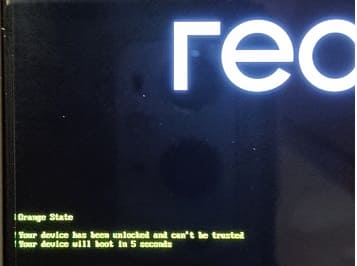
- Your phone will display a confirmation screen. Use the volume buttons to highlight Yes, then press the power button to confirm.
Step 5: Reboot the Device
- Once the unlock is complete, type the following to restart:
fastboot reboot
Your phone will restart and take longer than usual for the first boot. Don’t worry — this is normal.
You're Done!
Your Realme GT8 Pro bootloader is now unlocked. You can now root your phone, install a custom recovery like TWRP, or install a custom ROM. Just remember: with great power comes great responsibility.
Note: Make sure your device run on oldest firmware, newer version may not allow fastboot access.